Arrangement View
Arrangement View is the timeline of the song: tracks top to bottom, time left to right. Editing follows the conventions engineers already know from Pro Tools: Smart Tool clip halves, Separate, Heal, Batch Fades, Tab to Transients and clip gain. Zoom goes down to single samples.
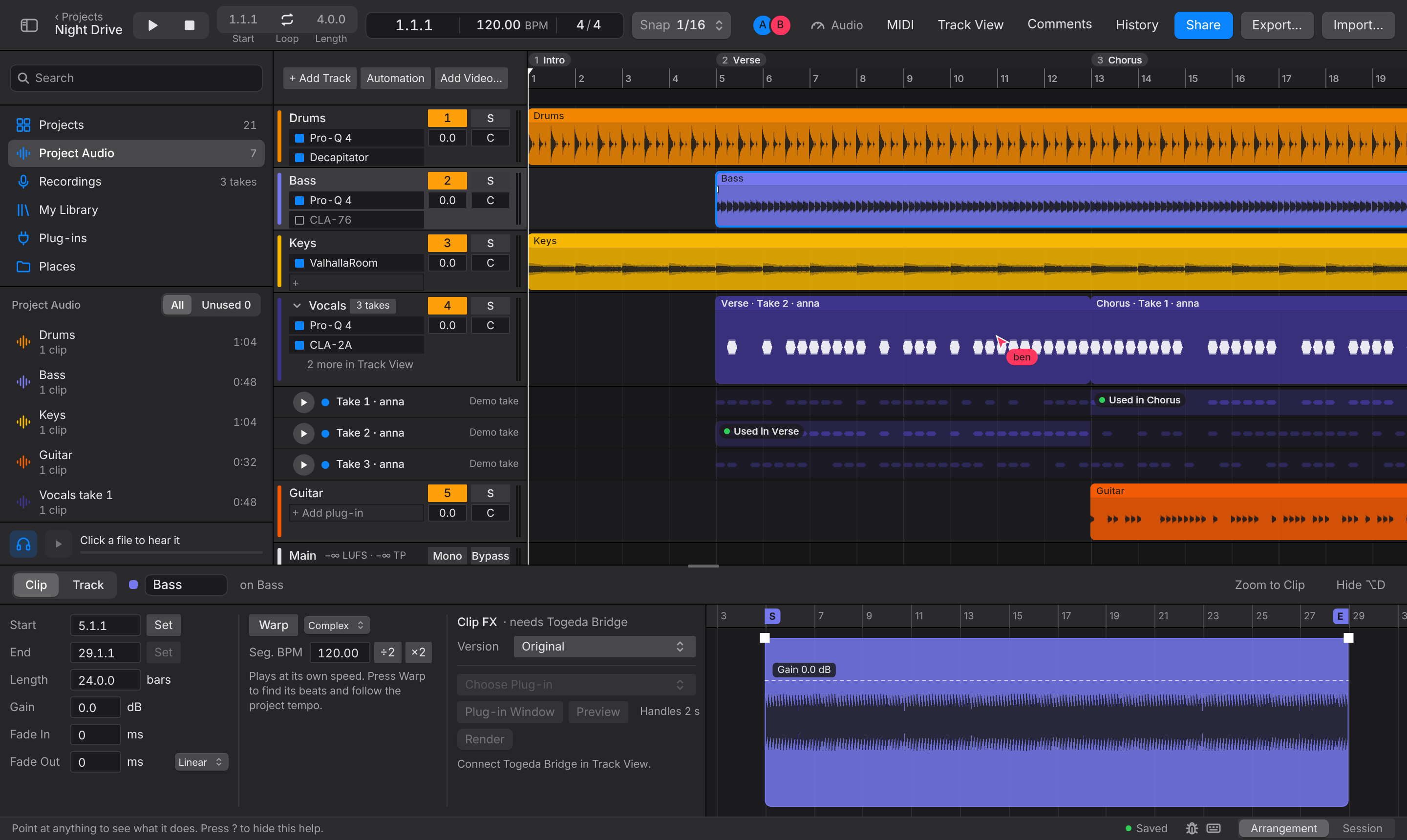
The ruler
The ruler has three rows:
- Sections (top): named parts of the song such as Intro or Chorus. Double-click the strip to add or rename one; right-click a section to play or loop from it. The first nine are numbered: press 1 to 9 to jump to one.
- Bar numbers: drag up or down to zoom, sideways to scroll; double-click to fit the whole song. A click moves the playhead there.
- Play strip (bottom): click to play from there. To draw a new loop, press and hold for a moment, then drag, so a slip while clicking doesn't make one. The loop brace sits here; drag its ends or its middle. L loops the selected clips, or turns the loop on and off.
Only these rows (and a picture track's filmstrip) move the playhead: a click on the tracks selects, it doesn't move the playhead.
Tempo, time signature, loop start and loop length are fields in the toolbar: drag them up or down, turn the scroll wheel over them, or click to type.
Clips
A clip has two halves, as with the Pro Tools Smart Tool:
- Move: drag the bottom half of a clip, or its name bar at the top. Hold Option to copy it, Shift to drag without snapping. The arrow keys move the selected clips by one grid step.
- Select time: drag in the top half of a clip (below its name bar), or on empty space. See Selecting a range below.
- Trim: drag a clip's left or right edge.
- Select several clips: Shift-click or Cmd-click them.
- Split: Cmd+E at the playhead, or right-click and choose Split Here. Cmd+D duplicates, Delete removes.
- Fades: drag the small squares at a clip's top corners. Drag the diamond up or down to bend the curve; double-click it to make it straight again.
- Grid: Option+1 narrows it, Option+2 widens it, Option+4 turns Snap on or off. The Snap pop-up in the toolbar does the same.
Select a clip to see it in Clip View at the bottom (double-click it to bring Clip View back when Track View is showing). Its name is in the header: click it to rename the clip. Below it:
- Start moves the clip, End and Length trim its end (in bar.beat.sixteenth; type a value or drag up and down). Set puts Start or End at the playhead.
- Gain, Fade In and Fade Out, and the fade shape.
- The warp settings (Warping) and Clip FX (Render a plug-in onto a clip).

Selecting a range
Drag across time in the top half of a clip, or on empty space, and up or down over the tracks you want. The time is lit on each of those tracks. Hold Shift while dragging to turn off snapping. Esc clears the range.

The edit keys on a range:
- Delete removes the audio in it and cuts the clips at its edges.
- Cmd+C and Cmd+X copy or cut just that audio; Cmd+V pastes it at the playhead on the selected track.
- Cmd+D puts a copy right after it, and the range moves onto the copy.
- Cmd+E splits the clips at both edges (Separate in Pro Tools).
- Cmd+J (Heal) joins pieces of one clip that still sit end to end, for example after an unwanted split. It works on the selected clips or the clips in the range.
- L loops it, Z zooms to it, and Export can export just it (Range: Selection).
Deleting or adding time in the whole song
To cut a bar out of the song or make room for a new intro, select a range of that length (on any track) and use:
- Delete Time (Cmd+Shift+Delete): takes that time out of every track. Everything after it, with its automation and sections, moves up to close the gap.
- Insert Silence (Cmd+I): adds that much empty time at the start of the range on every track. Clips across it are split, and everything from there moves later.
Both are in a range's right-click menu and undo in one step. The loop moves with the song. Comments stay where they were.
Going to the next hit
Tab moves the playhead to the next hit in the selected track's audio (a drum hit, the start of a note or word) or the next clip edge, and Option+Tab to the one before, as Tab to Transients does in Pro Tools. (With Live keys, Tab switches views and the Option+arrow keys below go to the hits. With Logic keys, Control+. and Control+, go to the next and previous hit, as in Logic.) Option+→ and Option+← do the same (on Windows, Alt+← is the one before). Add Shift to select from the playhead up to the hit, or to extend a range to it. With a range, it looks at the range's tracks. To split right on a hit, select up to it, then press Cmd+E.
Crossfades
Where one clip ends and the next starts, a crossfade blends them so the edit doesn't click: the clip before fades out while the next fades in. Use Crossfade (Cmd+F, or right-click):
- On selected clips, every edit between them gets a 10 ms crossfade that ends right at the edit, so a drum hit or word that starts there plays in full. This is Batch Fades in Pro Tools. With one clip selected, both of its edges get one.
- With a range over an edit, the crossfade covers the range. A range with no edit in it fades in the clips that start inside it and fades out the clips that end inside it.
F does the same as Cmd+F. D fades a clip in from its start to the playhead, and G fades it out from the playhead to its end (with a range, up to its end and from its start). These are the Pro Tools keys for Fade from Start and Fade to End.
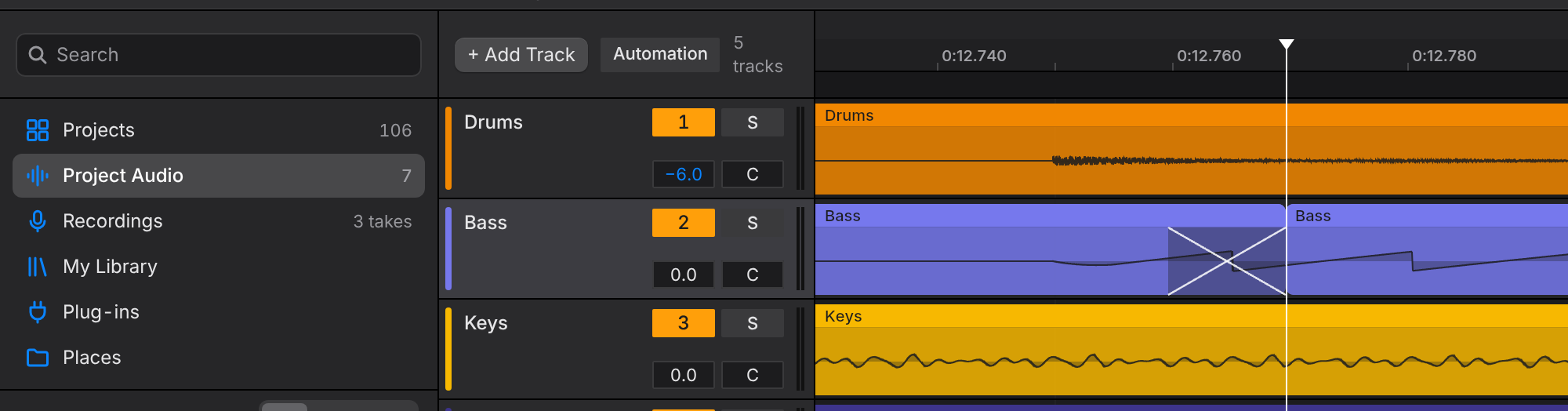
A crossfade is drawn as an X across the edit. It uses audio from just before the second clip's start and just after the first clip's end, so it reaches only as far as those clips have more audio. Between two different sounds it is equal power. At a cut in one recording, where both sides are the same sound, it is equal gain, so the level stays even. To extend it past the edit, drag the square at the top of the second clip. Remove Crossfades in the right-click menu (Cmd+Option+Delete) takes the crossfades off the selected clips' edits. Every other clip edge already gets a short fade so it doesn't click.
Clip gain
The dashed line in Clip View is the clip's gain, as in Pro Tools. Use it to even out a part before any plug-in, for example a loud word in a vocal.
- Drag the line up or down to change the whole clip. The Gain field does the same.
- Click the line to put a point on it, then drag the point to shape the line. The level goes straight from one point to the next, and holds the first and last points' levels before and after them.
- Double-click a point, or Option-click it, to remove it. Right-click for Add Gain Point and Remove All Gain Points.
- Control+Shift+↑ and Control+Shift+↓ (Windows: Ctrl+Shift+↑ and ↓) raise or lower the selected clips' gain by 1 dB, as in Pro Tools.
A clip with points shows its line on the timeline too, and its waveform follows it. The points stay on the same sound when you trim, split or copy the clip. Save to Computer… and DAWproject exports include the line.
Tracks
- Cmd+Option+T adds an audio track. Drag a header to reorder; right-click a header to rename, color or delete the track.
- On the right of each header: the track number turns the track on and off (mute), S solos it, and the two boxes under them set volume and pan. Drag them or scroll over them (Shift for 0.1 dB steps), click to type an exact value, double-click or Option-click to reset. The thin bar is the level meter.
- Option+= and Option+- make all tracks taller or shorter. Drag a header's bottom edge for one track.
Inserts
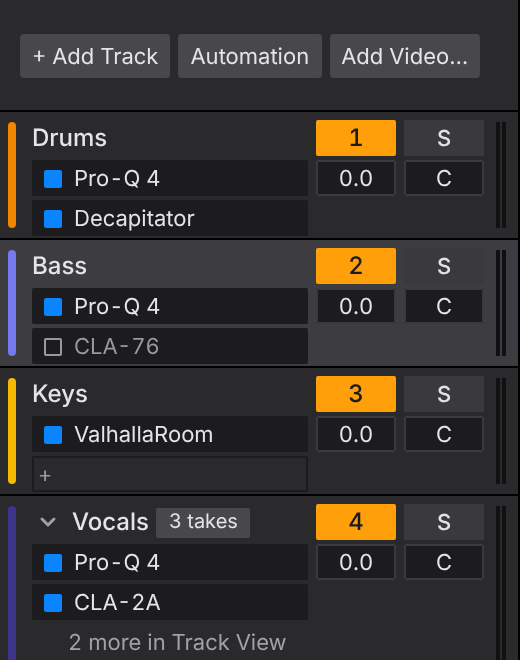
Under the track name are the track's plug-ins, one per line, in the order they play, as in the Pro Tools Edit window. After them comes where the track plays to, such as → Keys Bus, when it isn't Main.
- The square turns a plug-in on and off: filled is on, an outline with a grey name is off. Missing or Failed in yellow means it isn't running for you.
- Click a name to see that plug-in in Track View; double-click it to open its Plug-in Window. Right-click for Plug-in Window, Turn Off, Show in Track View and Delete.
- Drag an insert up or down to reorder it, or onto another track's header to move it there. Hold Option to copy it instead, settings and all.
- + (or + Add plug-in on a track with none) lists your plug-ins to add one at the end. You can also drag one in from the browser's Plug-ins section.
- A normal-height track shows two lines. When there are more, the last line says how many more and opens Track View; make the track taller to see them all.
- A rack takes one line, with the number of plug-ins in it.
Takes
When a track has several takes, U shows them as lanes under the track. Drag across a take to use it in each section you sweep over, or double-click a take lane to use that take in the section under the pointer. A new section keeps the take that was playing where you added it.
Moving around
| Play or stop | Space |
| Go to the start | Return or Home, or click Stop again (or double-click it) |
| One bar back or forward | , and . |
| Go to section 1 to 9 | 1 to 9 |
| Zoom | Cmd+scroll, pinch, or = and - |
| Zoom to the selection, and back | Z, then X |
| Fit the song in the window | W |
| Grab the timeline | hold Space and drag, or drag with the middle button |
All of them are in Keyboard shortcuts.
You can zoom in all the way to single samples. Past sixteenth notes the waveform becomes the curve the samples play, the ruler shows song time (minutes, seconds and milliseconds), and edits no longer snap to the grid. Use it to check a click at a clip edge or the start of a fade.