Working together
Togeda is built for several people in one project at once: a band writing from different cities, a producer and an artist, a mixer and a client. There is no session to send back and forth: everyone with access works on the same song, live.
Changes appear for everyone as they happen, with each person's name on their cursor and playhead. Edits merge, so two people can work on the same song, even on the same track. If you go offline, your changes wait on your computer and are sent when you are back; the info bar says how many are still unsaved.
Who can do what
Each person, and the share link, has a role. Set it in Share (see Getting started).
| Role | Can |
|---|---|
| Can view | Play the song, solo tracks, export, and map the In every project list to a MIDI controller |
| Can comment | All of the above, plus comment, reply and resolve |
| Can edit | Edit the song, invite people, and add an exported mix to Project Audio |
| Owner | All of the above, plus change roles, remove people, set link sharing and Reset Link |
Shared and personal
What you change in the song is shared. Some things play only for you, so each person can check and audition on their own:
- Session View launching: what you launch plays in your browser only.
- Mono and Bypass on Main.
- Touch and Latch automation modes. Others see the points you write.
- Your picture offset on a picture track.
- Your MIDI mappings, which follow you, not the project.
- Your Places, the folders on your computer.
Plug-ins run on the computer of the person listening, through their own Togeda Bridge; see Togeda Bridge.
Comments
New Comment… at the foot of the Comments panel opens a small box there. Its pop-up says where the comment will go, and the spot shows on the timeline while you type:
- Selection or Clip: the range or the clip you have selected. A comment on a clip moves with the clip.
- Playhead: the moment the playhead is at, on the selected track.
- Whole Song: a note that isn't about one place.
Type the comment and choose Comment.
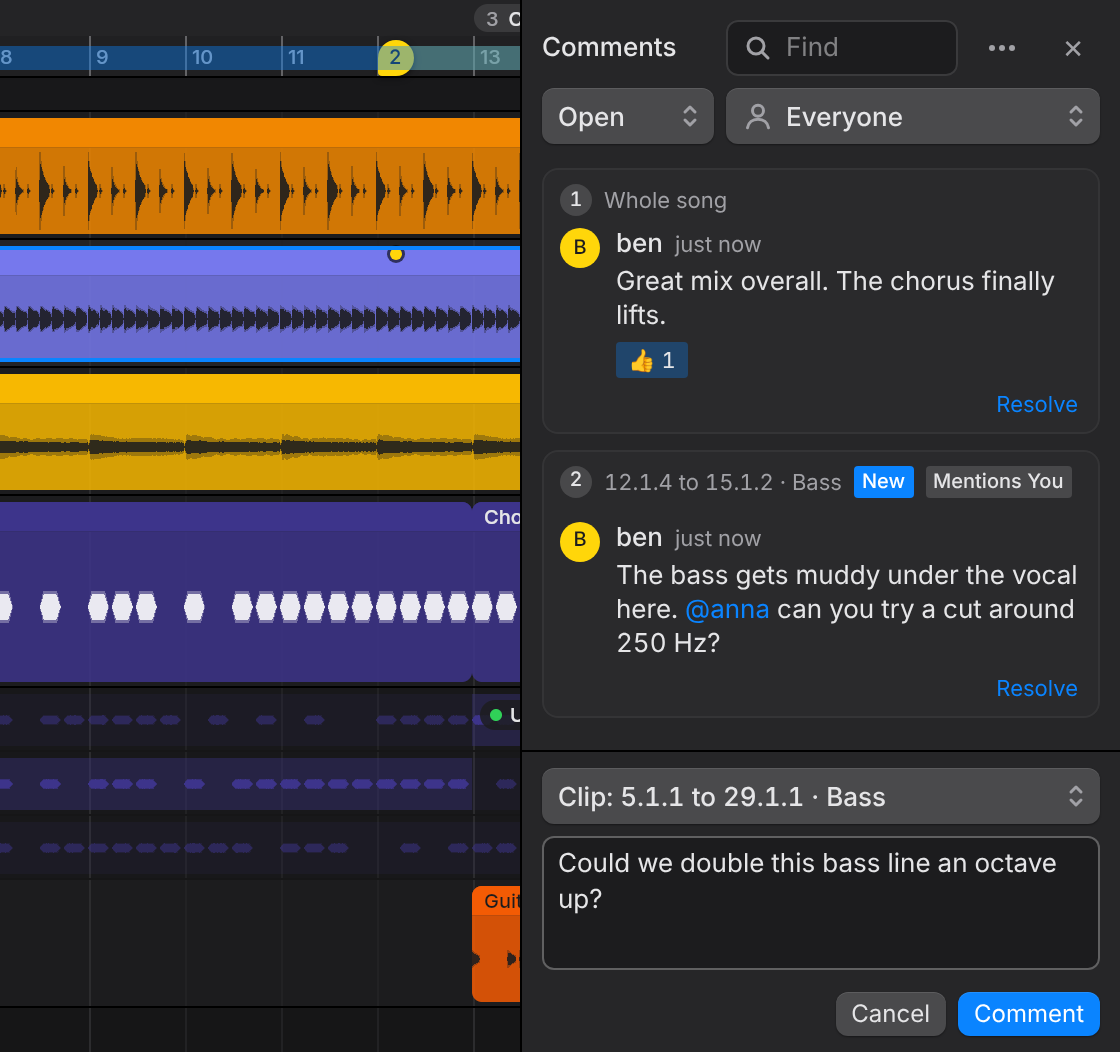
To put a comment straight on the timeline, press C (or choose Pick a Spot on the Timeline… in the pop-up). With Logic keys it's Shift+C, because C is Cycle there. Then click a moment, or drag across a range such as "bars 12 to 15". A range shows as a band on the ruler. While placing, Comment on Whole Song is there too.
People can reply, give a comment a 👍, and Resolve it. Type @ to name someone in the project: pick them from the list, and the comment shows Mentions You for them. Anyone who can comment can do all of this, without being able to edit.
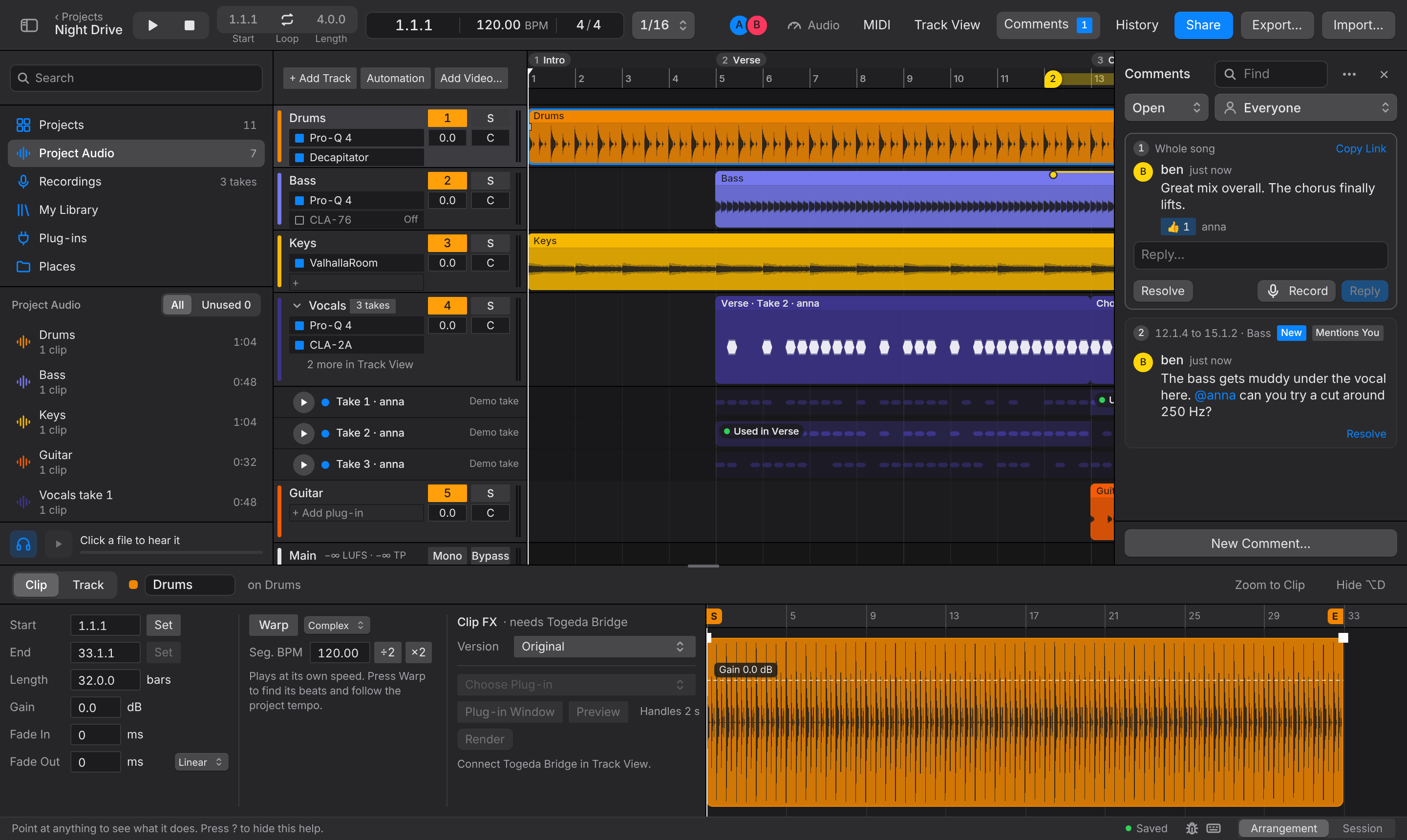
Voice notes
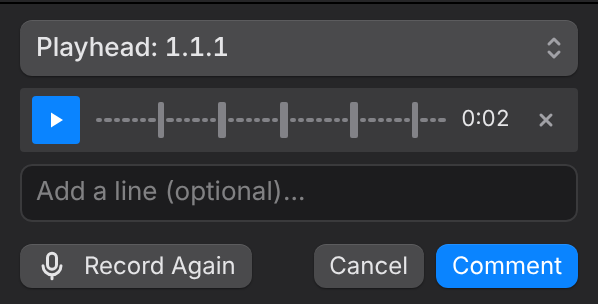
Sometimes it's quicker to hum the line or say "more like this". Record in the New Comment box (and next to Reply) records a voice note of up to a minute. The song keeps playing, so you can talk or hum along; the browser's echo cancellation keeps the speakers out of the note as well as it can, and headphones keep it out entirely. The first time, the browser asks to use the microphone.
Stop ends the note (a minute ends it on its own). Play it back, choose Record Again, or remove it with ✕. A line of text is optional.
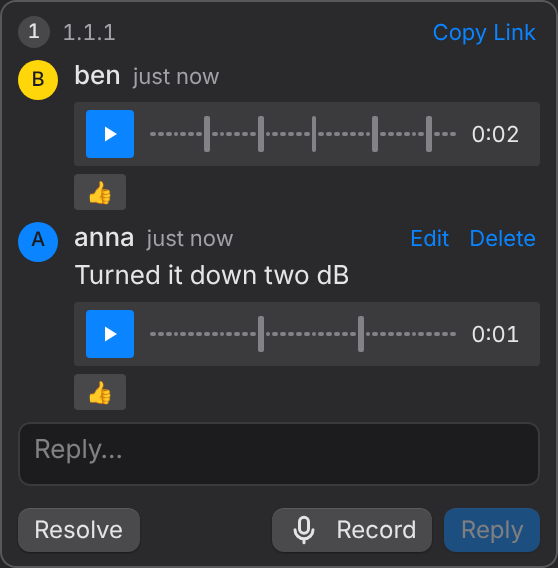
In the comment, the note shows under the text with its length. Playing it stops the song, and the line fills in blue as it plays. Find, the exports and Session info.txt read a note as "(voice note 0:12)", or "Voice note, 0:12" when it has no text, and the spreadsheet has a Voice Note column.
Comments you haven't read show New, and the Comments button shows how many threads have something new. Opening a thread reads it; Mark All Read in the panel's ⋯ menu clears them all. Togeda remembers this for your account, on any computer. Togeda doesn't send emails about comments yet.
Find at the top of the panel lists only the comments with those words (in the comment, its replies or the author's name) and marks the words. ✕ in the field or Esc clears it. The row under it chooses what the panel shows: Open, New, Mine (yours, and the ones that name you) or Resolved, from everyone or one person. Copy Link in an open thread copies a link that opens the project at that comment.
Export comments
The panel's ⋯ menu exports the comments the panel shows:
- Markers for Pro Tools, Cubase or Logic (.mid): a MIDI file with one marker per comment, at the song's tempo, starting at bar 1. Import it in your DAW at the start of the song, and the markers land on its marker track (in Pro Tools, as memory locations).
- Spreadsheet (.csv): every comment with its bars, time, track, author, voice note length, replies and likes.
Open comments are also listed in Session info.txt in every stems export.
Version history
Option+H opens Version History. A version is saved two minutes after people stop editing, with who edited and when. Save Version… saves a named version now. Preview opens an older version read-only, and Restore This Version brings it back for everyone.
Named versions are kept for as long as the project exists. Automatic versions from the last 30 days are all kept; before that, the last one of each day stays.
Project Audio and folders
The Project Audio section of the browser lists every file in the project, for everyone. Make folders with New Folder… and drag files into them. Show Unused Only finds files no clip uses. Delete from Project removes one for everyone (Undo brings it back).
My Library and Places
- My Library holds audio from all your projects. Adding a file from there needs no upload.
- Places shows folders on your computer. Choose Add Folder…. Chrome and Edge open folders themselves; Safari and Firefox need Togeda Bridge. Only you see your Places: collaborators, viewers and share-link users never see the folders or their files. A file you drag from Places into the project is uploaded, so everyone in the project can hear it. The file in your folder stays as it was.
- Save to Computer… on a file or clip saves it as a WAV.
Projects
The Projects section at the top of the browser lists your projects, the ones shared with you and the Trash; see Getting started.
Jams from the Session app
The host of a jam room in the Session app on iPhone or iPad can choose Connect with Togeda and pick a Togeda project. The jam is recorded with a clip per player and lands in the project's Recordings section. Everyone in the room gets a link to view and export it; the owner can make them editors from Share.