Mixing
Togeda's mixer provides volume and pan, up to four returns with pre- or post-fader sends, routing, volume and pan automation with Touch and Latch, plug-in racks with macros, Commit Track, and checks on Main for mono, plug-in bypass, LUFS and true peak.
Mixer
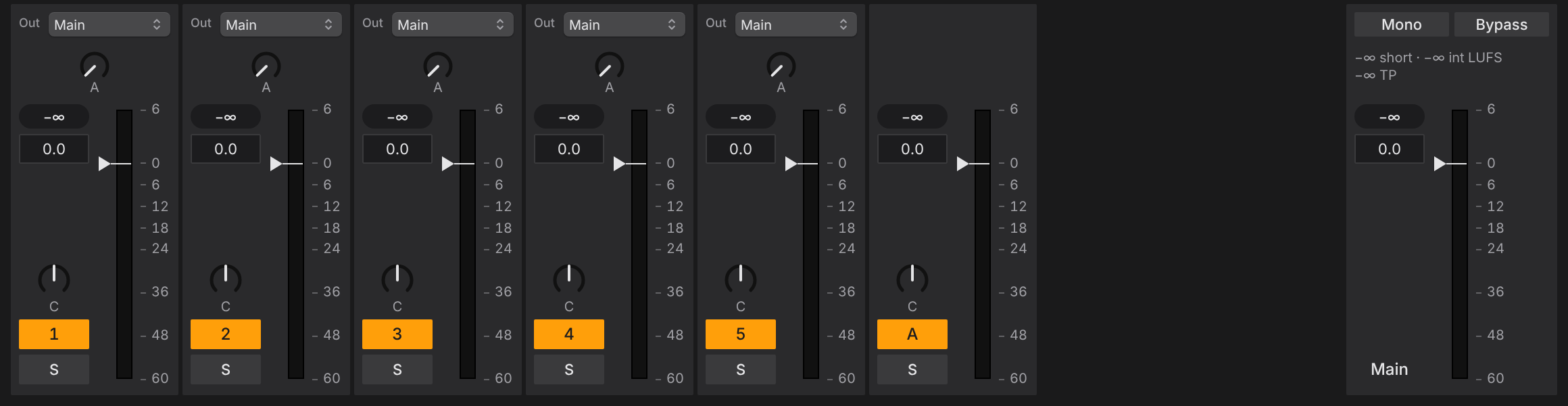
The mixer is in Session View (press Cmd+=, the Mix window key in Pro Tools, Tab with Live keys or X with Logic keys), under the clip columns, as in Ableton Live. Each strip has the Out pop-up, a knob for each send, the peak level, volume, pan, fader and meter, the track number (turns the track on and off) and S for solo. Drag the line above the mixer to resize it; when it is short it folds into compact boxes. In Arrangement View each track header has the same number, S, volume and pan boxes, and lists the track's plug-ins under its name (Inserts).
Every knob, fader and number box works the same way: drag up or down (Shift for fine steps), or turn the scroll wheel over it. Double-click it or Option-click it to reset (0 dB, center, or a send off). Click a number box to type a value.
Checking the mix on Main
Main is where every track ends up: the last row in Arrangement View and the last strip in Session View. Its header is laid out like a track's: Mono and Bypass on the right with the volume under them, and Main's plug-ins under its name. Next to its volume:
- Mono folds the mix to mono, to hear what cancels or gets lost on a phone or a club system.
- Bypass turns off every plug-in in the project, so you can hear the mix before and after them.
- The loudness readout, next to the name in Arrangement View, shows while playing the integrated loudness since you pressed Play in LUFS and the highest true peak (TP) in dB. Session View's Main strip also shows the last 3 seconds (short). TP turns red above −1 dB. Click the readout to reset integrated and TP.
Mono and Bypass change only what you hear. Nobody else in the project hears them, and exports ignore them.

Automation
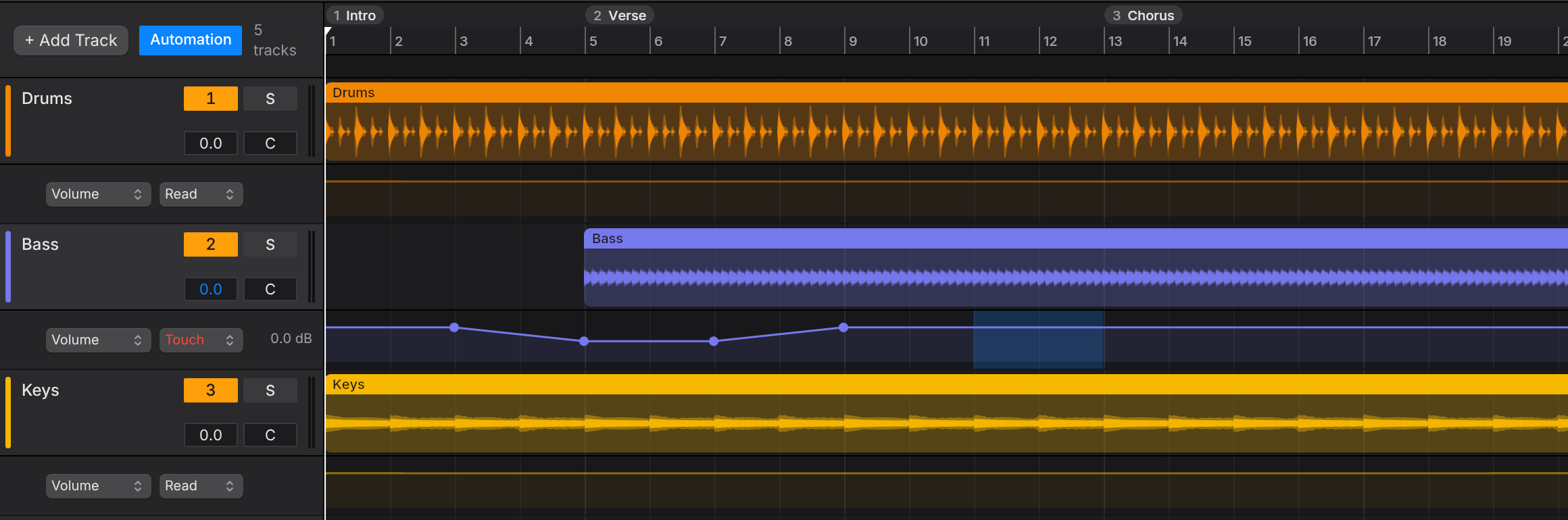
Automation changes a track's volume or pan, or Main's volume, over time. Press A, or click Automation above the track headers, to show a lane under each track and under Main. The pop-up on the left of a lane picks Volume or Pan; right-click a lane to show both.
- Click the line to add a point there, and drag to move it. Hold Shift for fine moves.
- Click above or below the line to add a point at that height.
- Double-click a point, or Option-click it, to remove it.
- Drag across empty space to select a time range. Delete removes the points in it, and dragging inside the range moves them.
- Write Current Volume to Selection (right-click the lane) puts the value you hear now flat across the range, as in Pro Tools.
The second pop-up is the lane's mode:
- Read plays the lane. Moving the volume or pan while it plays is heard only until you let go.
- Touch and Latch record what you move while playing. Touch returns to the old line when you let go; Latch keeps your last value until you press Stop.
- Off stops the lane, for everyone, and the track plays at its volume and pan again.
Touch and Latch are yours alone; others see the points you write. While a lane plays, the track's volume and pan boxes follow it in blue.
The mix and As Heard stems include automation. For Mixing stems leave it out, so the engineer gets the raw tracks. DAWproject export and import keep volume, pan, Main and plug-in parameter lanes.
Sends and returns
+ Return after the last column in Session View, or Cmd+Option+R, adds a return track (up to four, A to D). Each track then has a send knob for each return; the letter under a knob switches that send pre-fader (lit) or post-fader. Put a reverb or delay on the return through Togeda Bridge. New projects start with no returns.
Routing
The Out pop-up at the top of a mixer strip sends a track to another track or a return instead of Main, for example to put several tracks through one plug-in. Solo keeps the path open, as in Ableton Live.
Plug-ins and racks
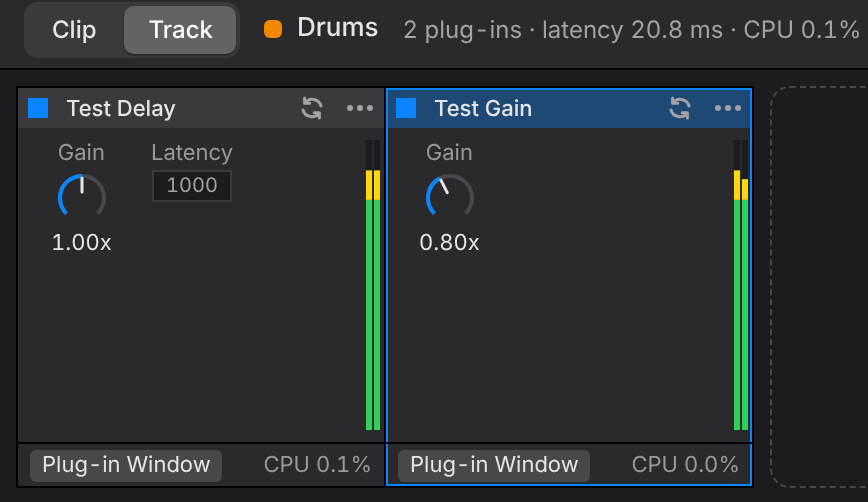
Select a track and press Option+Shift+D for Track View: its plug-ins as cards with knobs, left to right. The track's header lists the same plug-ins by name (Inserts).

- Drag plug-ins in from the browser's Plug-ins section, or use the Add Plug-in card. Drag a card to reorder.
- Click a card to select it, Shift-click to add more. Delete removes them.
- The power button turns a plug-in off; the swap button replaces it with another plug-in in the same place.
- While playing, each card shows its CPU, and the line above the cards shows the track's total plug-in CPU and latency.
- Cmd+G groups the selected plug-ins into a rack. A rack has eight Macros: choose Map, then move any plug-in control to link it to a macro. One macro can turn several controls at once. Rand sets the macros at random. Cmd+Shift+G ungroups.
Select the Main track (the last header) for its Track View: plug-ins there, such as a compressor or limiter, work on the whole mix. Exports print them into the mix (see Export).
Commit Track
Commit Track in a track's right-click menu prints the track through its plug-ins to a new audio track right under it, called "*name* Committed", as in Pro Tools. Use it to share a sound with collaborators who don't have the same plug-ins, or to save CPU.
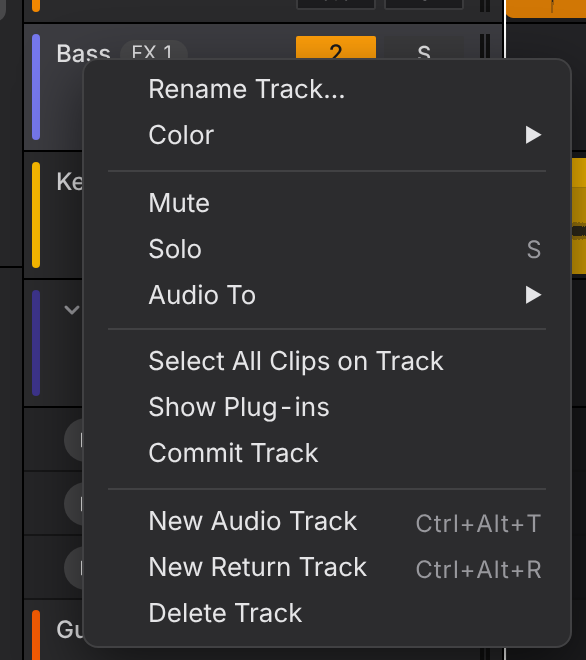
- The new track takes over the volume, pan, sends, Audio To and volume and pan automation. Reverb and delay tails ring out after the last clip.
- The original stays, muted and with its plug-ins off, so you can go back.
- Cmd+Z undoes the whole Commit in one step.
- It needs Togeda Bridge connected. A track that other tracks play into (through Audio To) can't be committed; commit those tracks first.
Render a plug-in onto a clip
Render with Plug-in… in a clip's right-click menu (or Option+R) opens the plug-in list in the Clip FX column of the Clip View, as AudioSuite in Pro Tools: a plug-in is rendered onto the clip's audio, so everyone hears it, with or without the plug-in or Togeda Bridge. Use it for dialogue cleanup (a de-noiser or de-esser) or any plug-in you want printed onto one clip and not the whole track.
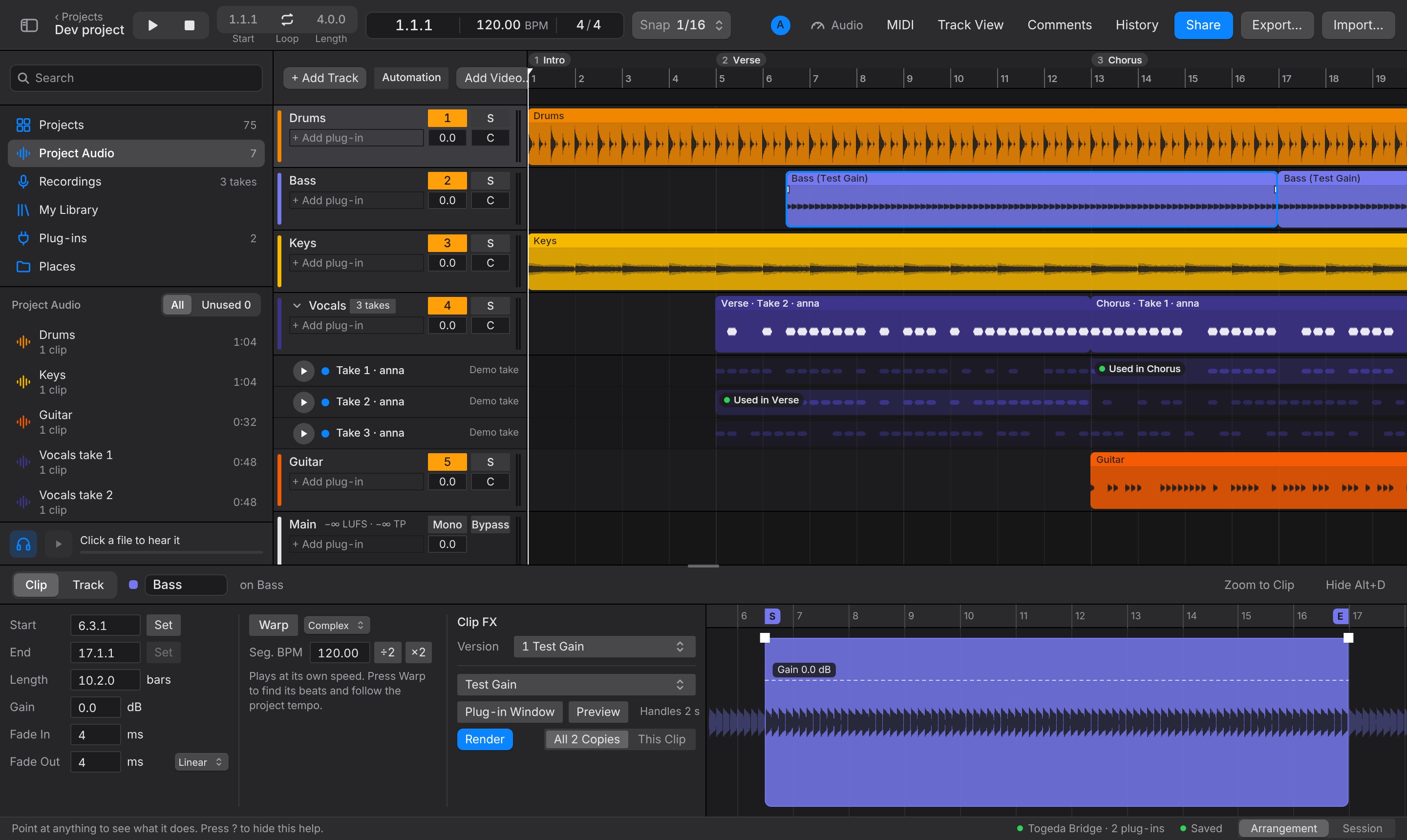
At the top, Version shows what the clip plays now; Preview and Render start from it. Below the line:
- Pick a plug-in. Plug-in Window opens it to set it up.
- Preview (lit yellow while on) loops the clip through it while you change its settings; only you hear it. It plays again a moment after each change.
- Render prints it as a new version. The clip's name now says which plug-ins play, such as "Bass (Test Gain)".
The line at the bottom says what's going on: loading, previewing, or that a render will drop later versions.
- Rendering includes Handles 2 s before and after the clip, so you can still trim and fade it. To make a clip longer than that, pick Original in the Version menu, trim it, then pick version 1 and Edit Settings…: the versions render again for its new length.
- Clips split or copied from one recording share their versions. Render works on All Copies or This Clip (which then gets its own versions).
- The Version menu lists the Original and each render with who made it and when. Picking one plays it at once, for everyone. Edit Settings… opens the version's plug-in with its saved settings; Render renders it and the versions after it again. Delete takes the version out and renders the ones after it again. Editing a version needs its plug-in in your Togeda Bridge.
- Rendering on an earlier version deletes the versions after it; Delete Unused does that on purpose. Cmd+Z undoes each Render, version switch, Edit Settings or Delete in one step, and the original is always kept.
- Exports, stems and Commit Track use the version playing.
- Tools that only work in a DAW's offline or ARA mode (VocALign, Revoice Pro, CEDAR Retouch) and plug-ins that only come as AAX can't be used: a clip plug-in runs the way it plays live.
Pictures and meters
Many plug-ins get a picture of what they do above their four main knobs:
- EQ: its curve; click a dot to pick a band. An EQ whose settings don't say its bands gets a curve measured from the sound going in and out while it plays.
- Compressor or gate: its curve.
- Delay: its repeats. Reverb: its tail.
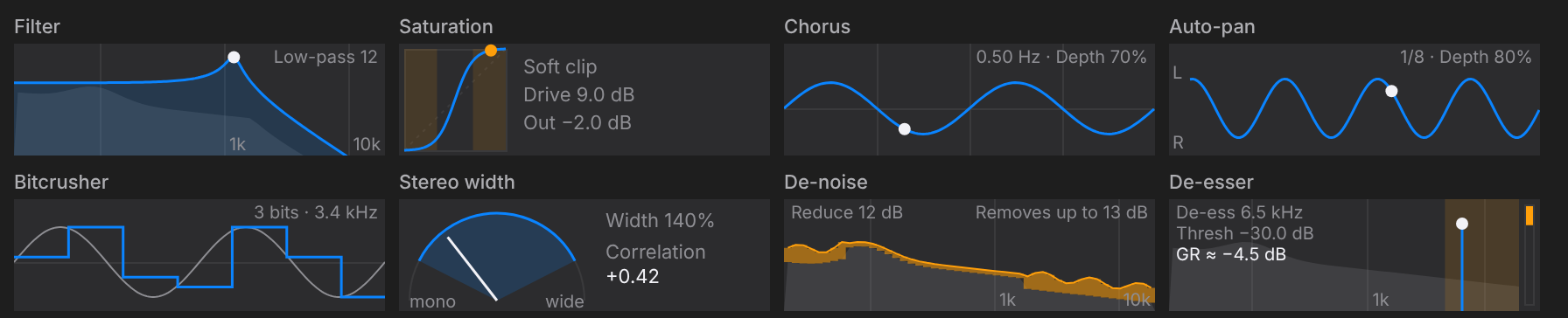
- Filter: its curve, with a dot at the cutoff.
- Saturation: how it bends the sound, soft or hard.
- Chorus, flanger, phaser, tremolo, auto-pan: the LFO at its rate and depth.
- Bitcrusher: a wave and the steps it's cut into.
- Stereo width: an arc as wide as the sound.
- De-noiser (RX, dxRevive, CEDAR DNS and others): what it takes out of the sound, measured while it plays.
- De-esser or de-plosive: the band it works on.
approx. in the title bar means the picture is a sketch from the plug-in's settings.
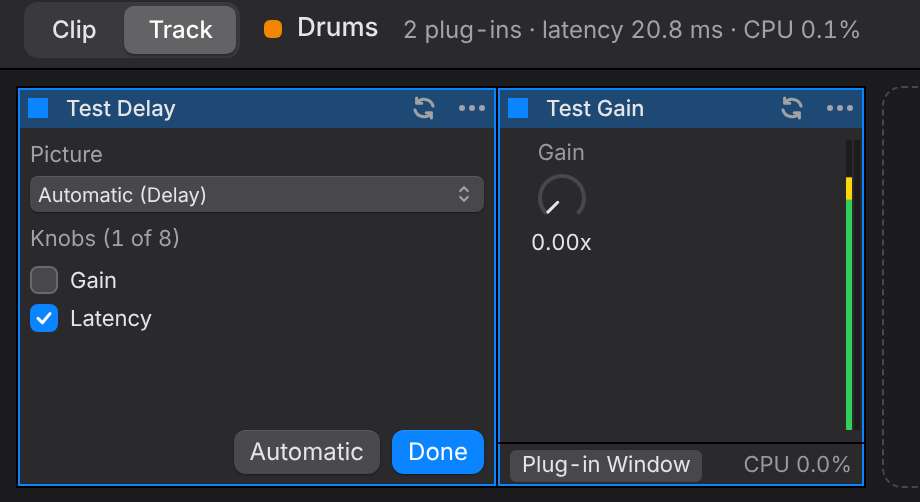
To choose for yourself, pick Configure… in a card's … menu:
- Picture: Automatic (what Togeda found), No picture, or any of the kinds above. If the plug-in's controls don't fit the kind you pick, the card says so and shows knobs only.
- Knobs: tick up to eight controls to show, in the order you tick them.
- Automatic goes back to Togeda's picture and knobs; Done closes it.
Your choice is saved in the project, so everyone sees the same card.
While a plug-in runs in your Bridge and its card is on screen:
- Two thin bars at the card's right edge show the level going in and coming out.
- A dot on a compressor's or gate's curve shows where the signal sits now. On a gate the dot turns green while the gate is open; the line marks its threshold.
- An EQ or filter shows what comes out, faint behind its curve.
- A saturator's dot shows where the signal's peaks sit on its curve, and how much louder or quieter it comes out.
- A chorus's or tremolo's dot runs along its LFO.
- A stereo width device's needle shows how the output's left and right relate: far left is mono, toward the right is wider. Past the top it turns orange: left and right start to cancel, which sounds thin in mono.
- A de-noiser shows what comes out, with what it took out shaded in orange above it, and how many dB it removes at most.
- A de-esser shows how much it squashes its band now (GR ≈ when worked out from the sound going in and out).
- A compressor shows how much it squashes in an orange bar hanging from the top. GR is the plug-in's own figure; GR ≈ is worked out from the levels in and out, for plug-ins that don't report it.
Plug-ins need Togeda Bridge on each listener's computer; without it, a track plays dry.
Audio settings
Audio in the toolbar opens the Audio menu: output latency (Low or Safe), dropouts and your device's sample rate. Togeda moves to Safe by itself if Low keeps dropping out.