Getting started
Togeda runs at https://studio.togeda.app. The studio needs no installer: sign in, and your projects and their audio are stored online, ready on any computer you sign in on. This chapter covers signing in, projects, the project window, updates, adding audio and sharing.
Sign in
Togeda is in private beta. Open https://studio.togeda.app, enter your email and choose Join the Waitlist. We write to you when it's your turn.
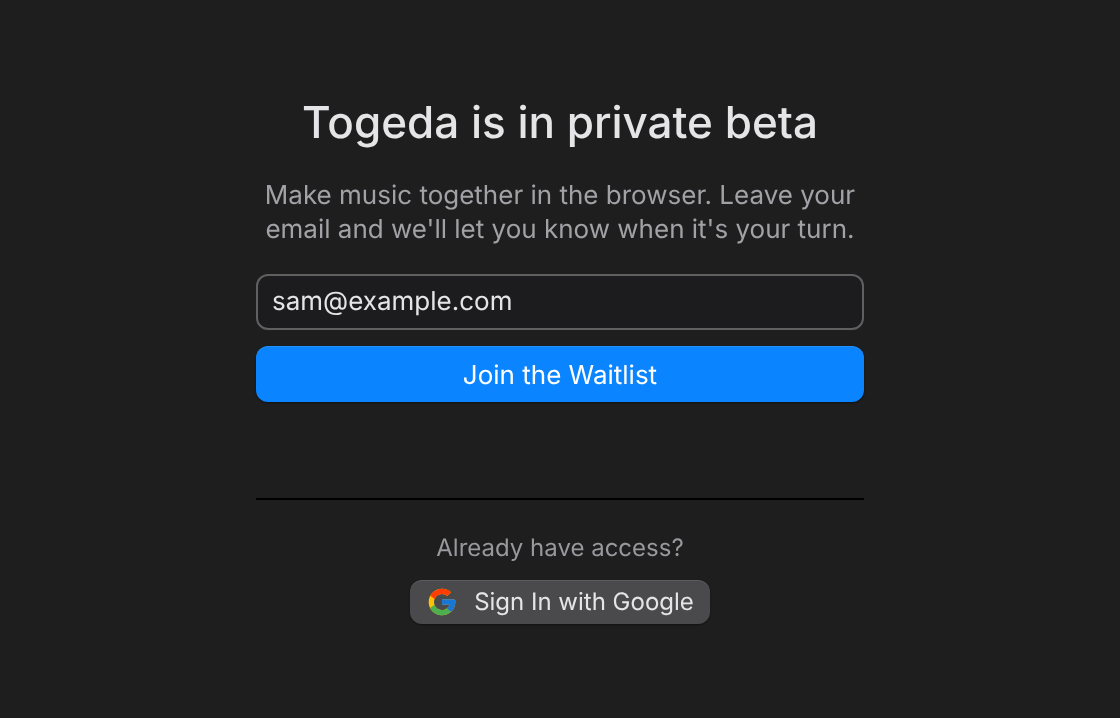
If you already have access, choose Sign In with Google under Already have access?. Google is the only way to sign in. Someone who invites you to a project by email gives you access too.
Signed in but not let in yet? You can still work in any project someone shares with you; you just can't make projects of your own until it's your turn.
The first time, Togeda opens a project of your own called Demo Song, with a short song already in it. Press Space to play it. After that, studio.togeda.app opens the project you had open last.
Your projects
Choose ‹ Projects above the project name, or the Projects section at the top of the browser on the left. It lists My Projects, Shared with Me and Trash.
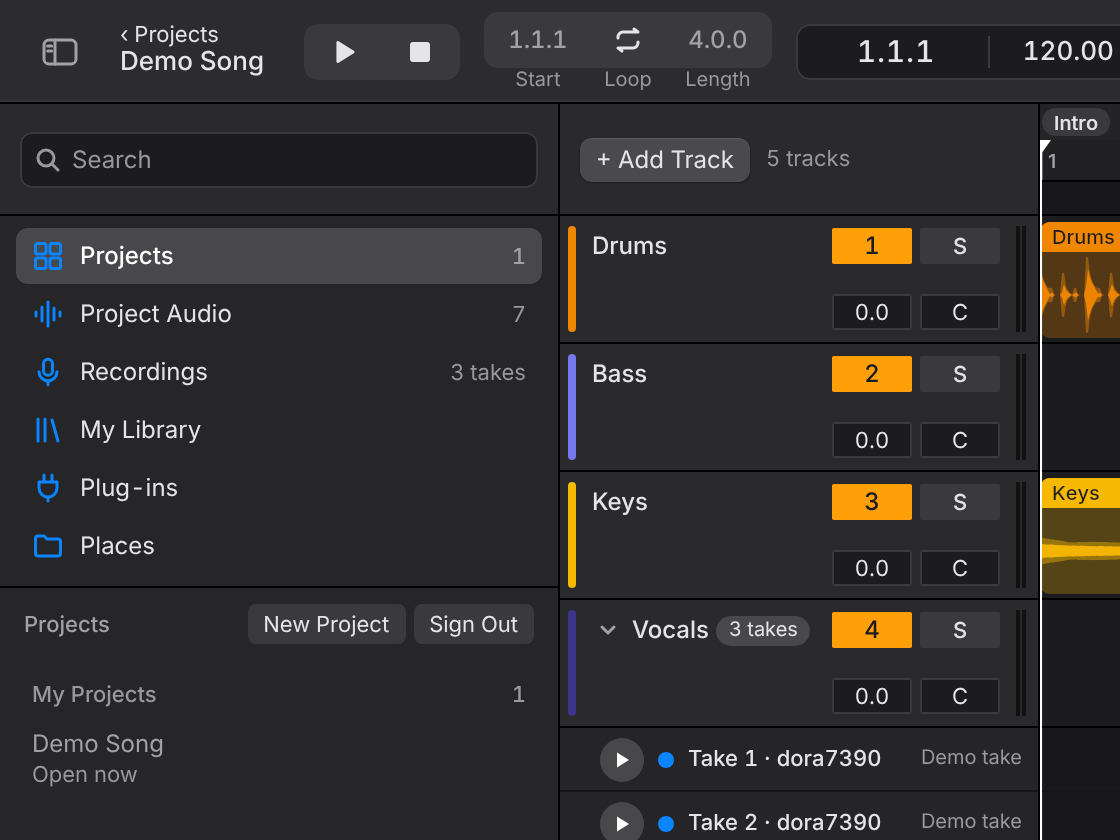
- Click a project to open it. New Project starts an empty one, with one track (Audio 1) to drop audio on.
- Double-click the project name in the toolbar to rename it.
- Right-click a project to open it in a new tab, rename it, move it to Trash, or leave a project someone shared with you. A project stays in Trash for 30 days; right-click it there to Restore it.
- Sign Out is in the same place.
The project window
- Toolbar (top): ‹ Projects for your other projects; transport, tempo, time signature, loop and Snap; who else is here; Audio; Track View (the selected track's plug-ins), Comments, History, Share, Export… and Import…. In a narrow window the buttons on the right move into a More menu.
- Browser (left): Projects, Project Audio, Recordings, My Library, Plug-ins and Places. Drag anything from here onto a track.
- Arrangement (middle): tracks and clips on a timeline. Press Cmd+= for Session View and the mixer (Tab with Live keys, Option+V or X with Logic keys).
- Detail View (bottom): Clip View for the selected clip (with Clip FX to render a plug-in onto it, Option+R), Track View for the selected track's plug-ins. Option+Shift+D (Live keys: Shift+Tab) switches between Clip and Track View, Option+D or its Hide button hides it. Drag the bar on its top edge to resize it.
- Info bar (bottom edge): what the thing under the pointer does, and whether your changes are saved. Press ? to hide or show it. At its right end, the bug button sends us feedback (see below) and the keyboard button opens Keyboard Shortcuts (⌘/).
Messages appear at the bottom of the window. An error message stays until you choose OK. Undo and Redo name what they changed, such as "Undo: Bass moved".
Togeda remembers where you were: a reload brings back the same view, zoom and scroll.
Send feedback
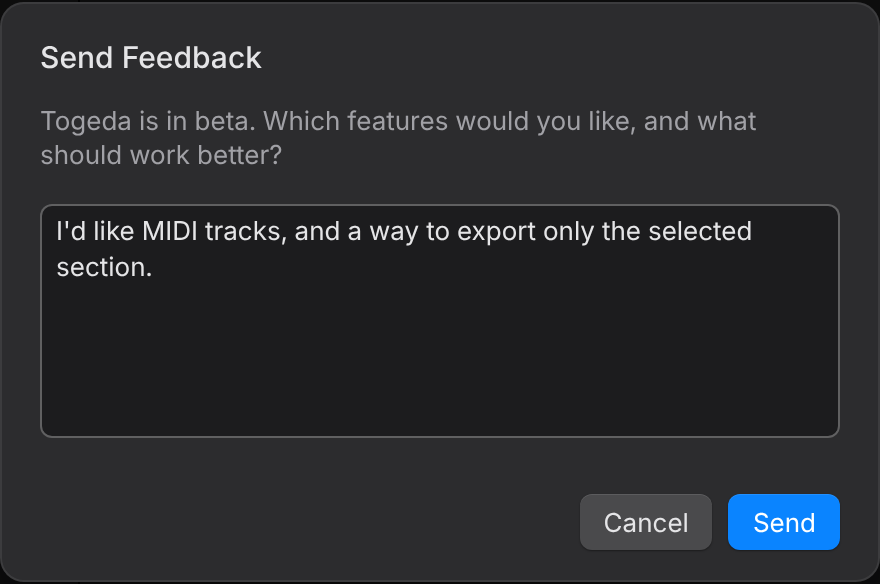
While Togeda is in beta, the bug button at the right of the info bar opens Send Feedback. Tell us which features you'd like and what should work better, then choose Send. Your name and email go with it, so we can write back.
When Togeda updates
When a new version of Togeda comes out while a project is open, a bar under the toolbar says New version is ready. Choose Reload when it suits you: the project opens again where you were, with all your changes. Togeda never reloads by itself, so playback and exports are never cut off. If one is running, Reload asks first.

Occasionally an update changes how Togeda talks to its servers. The bar then adds Reload to keep working: the page can't save changes until you reload. Nothing is lost. Your changes wait on your computer and are sent after the reload.
Add audio
- Drag audio files (WAV, AIFF, FLAC, MP3, OGG, M4A) from the desktop onto a track or onto empty space, or use Import… in the toolbar.
- Drag from the browser on the left: files already in the project, My Library (audio from all your projects, with no second upload), or Places (folders on your computer).
- An empty project offers Load Demo Song to bring the demo back.
Large files show their progress as they come in. Several files come in one at a time, each on its own track, and the message at the bottom counts them ("Importing 2 of 5"). Files play at once, before they finish uploading. Short loops come in warped to the project tempo; see Warping.
Songs from another DAW
Import… also opens a .dawproject file from Bitwig Studio, Cubase, Studio One and others.
- Audio, fades, warping (with its mode), sends, volume and pan come across.
- Clip launcher scenes land in Session View.
- A group track comes in as a track that its tracks play into with Audio To, keeping its own volume, pan and plug-ins.
- VST3, AU and CLAP plug-ins come across with their settings, Main's included, and play through Togeda Bridge.
- MIDI and the other DAW's own devices are left out. A short report lists what was skipped.
Share
Choose Share to invite people by email or to turn on a link. Each person, and the link, gets a role: Can view, Can comment or Can edit. Changes by anyone show up for everyone straight away, with their name on their cursor.
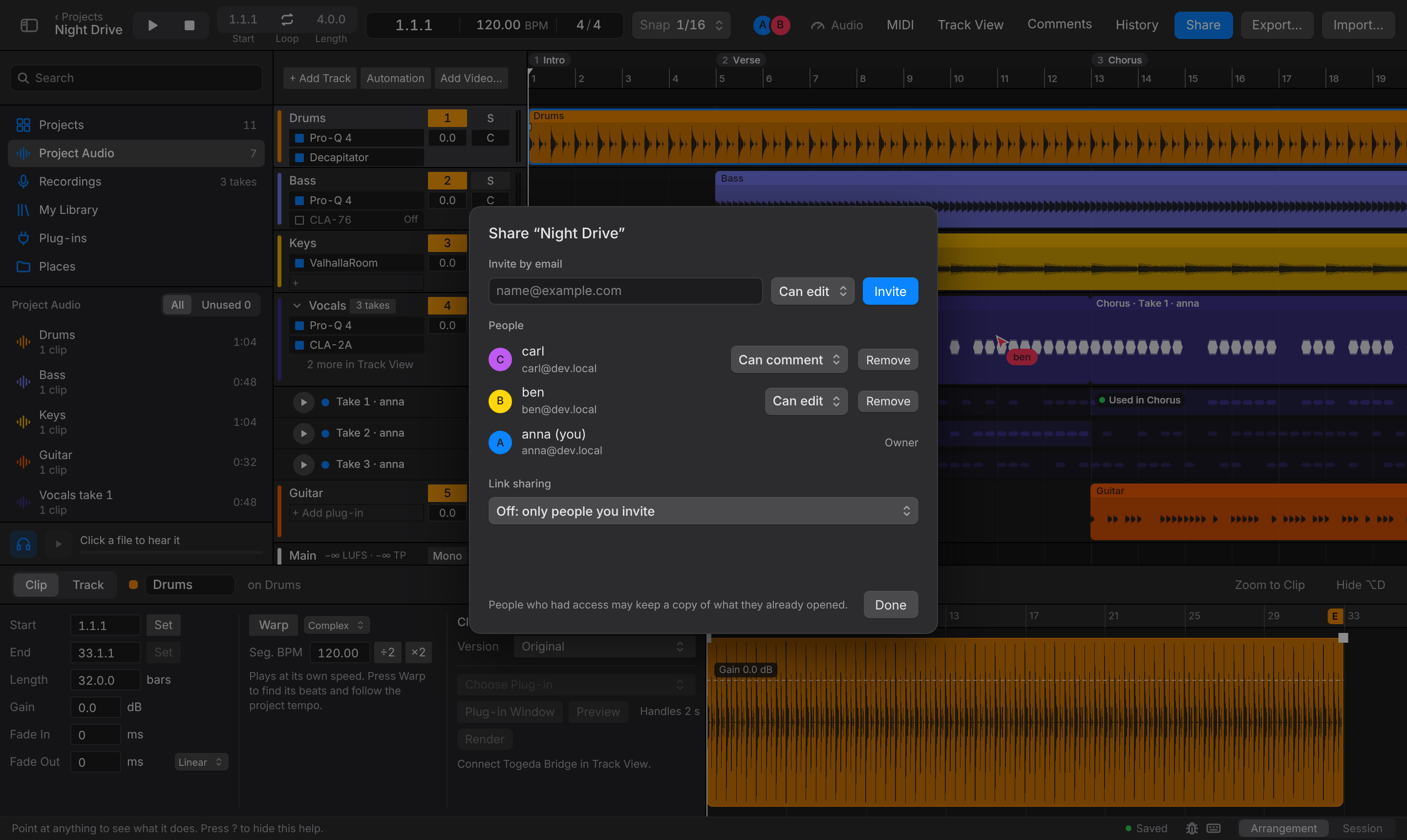
- Owners and editors can invite. Togeda sends no email: an invited person joins when they sign in with that address, so send them the project link. Your invite also lets them past the waitlist.
- A view link needs no account to listen. With a comment or edit link, people sign in, then land in the project.
- The owner changes roles, removes people and sets the link. Reset Link makes the old link stop working.
People who can view can still play the song, solo tracks and export. See Working together for what each role can do.