MIDI controllers
Map the knobs, faders, buttons and pads of a MIDI controller to Togeda's volume, pan, sends, mutes, solos, rack macros, plug-in knobs, clip slots, scenes and transport. With feedback on, Togeda lights the controller's buttons and moves its motor faders to match the screen. Controllers come in through Togeda Bridge, so they work the same in Chrome, Edge, Safari and Firefox, on Mac and Windows.
Connect your controller
- Open Togeda Bridge and pair it (see Togeda Bridge).
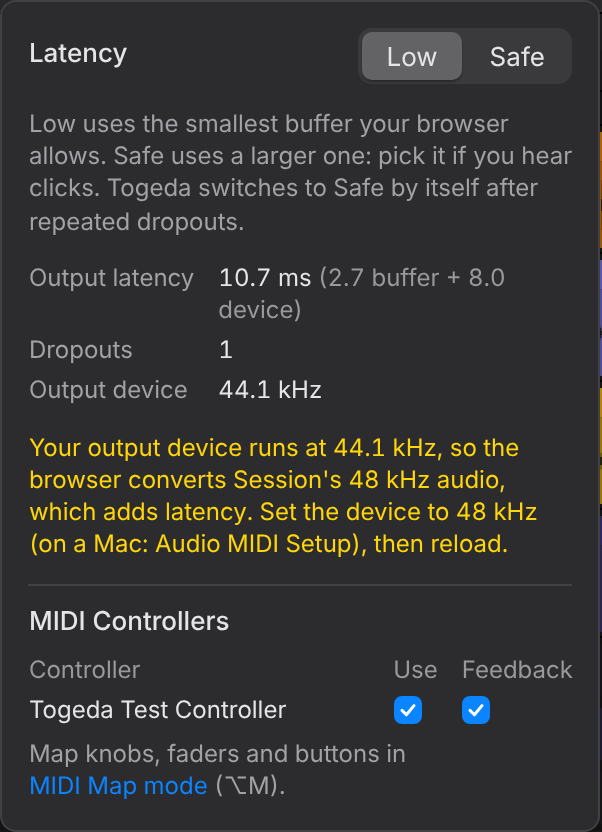
- Plug in your controller. It shows up by itself under MIDI Controllers in the Audio menu at the top right.
Each controller has two switches there:
- Use: Togeda listens to its knobs, faders and buttons.
- Feedback: Togeda lights its buttons and moves its motor faders to match what is on screen (for example, the Play button lights while playing).
Turn Use off for a controller you play instruments with in another app. On Windows, a controller another app already has open says In use by another app: close that app, or turn the controller off there.
Map a knob, fader or button
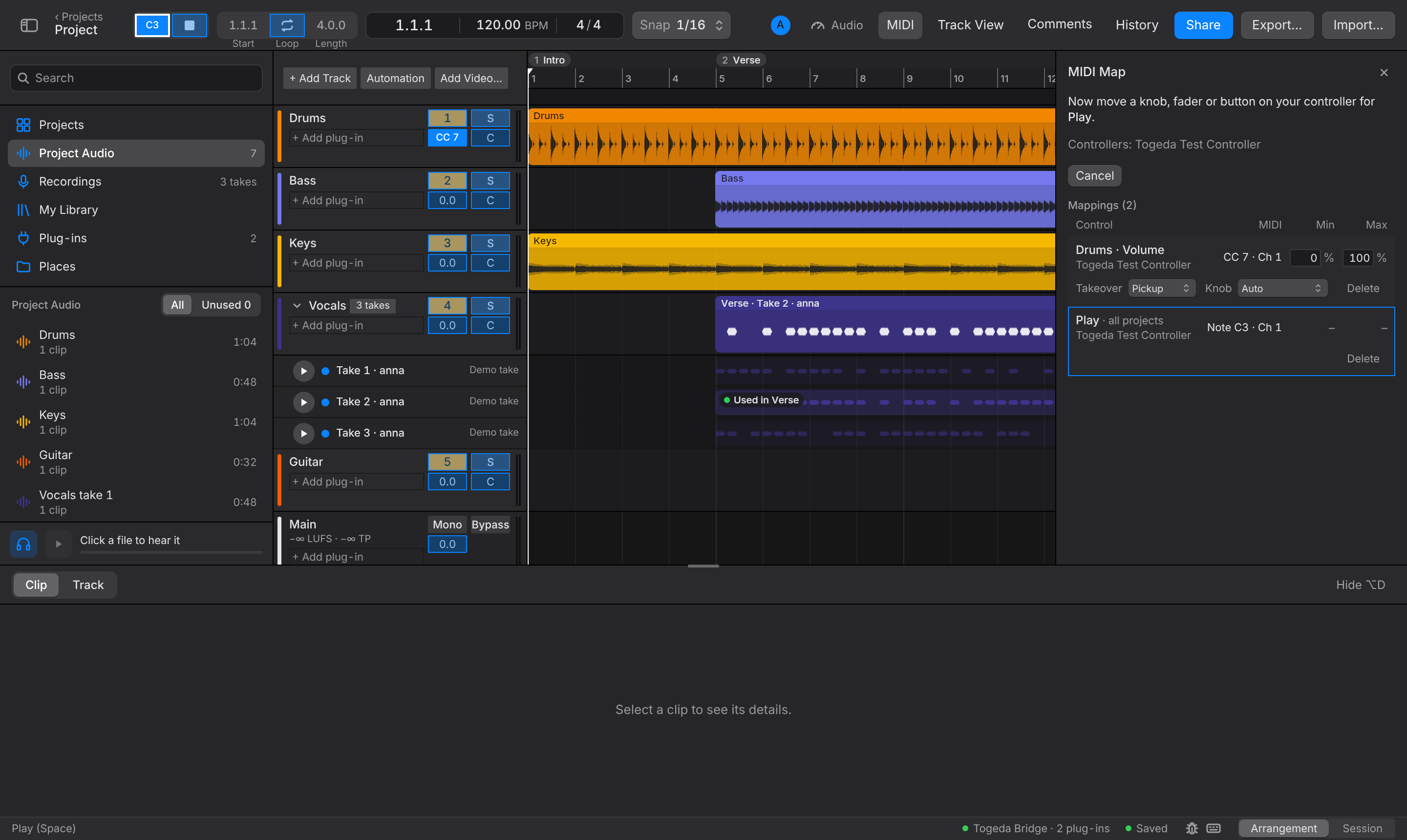
- Click MIDI in the toolbar, or press Option+M. Everything you can map gets a blue tint, and the MIDI Map panel opens on the right.
- Click a control in Togeda, for example a track's volume.
- Move a knob, fader or button on your controller. The control now shows what it is mapped to (CC 7, C3).
- Map more, or press Esc (or click MIDI again) to finish.
Mapping a control again replaces its old mapping. Each knob, fader or button on the controller moves one thing.
The panel's In every project list has Play, Stop, Loop, Main Volume and the selected track's volume, pan, mute, solo and sends, plus Previous and Next Track. These follow you into every project, so a controller can drive whichever track you select. Everything else you map is saved in that project.
Your mappings are yours
Mappings belong to you, not to the project: a collaborator with their own controller makes their own, and your controller never moves theirs. They follow you to another computer when you sign in. Moving a control on your controller is the same as moving it with the mouse: everyone in the project sees it, and in Touch or Latch it writes automation. Undo takes back the moves, not the mappings.
People with view access can map the In every project list only.
With Togeda open in two tabs, your controller follows the tab you last clicked in.
Mapping settings
Each mapping in the panel shows what it moves and which control moves it, with Delete to remove it. For knobs and faders:
- Min and Max: the part of the travel the control covers, in %. Put Min above Max to turn it backwards.
- Takeover: what happens when the control isn't where the value is (after you moved it with the mouse, or switched projects). Pickup waits until the control passes the value, then follows it. Scale moves toward the control so both meet at the end of its travel. None jumps to the control right away.
- Knob: Auto tells endless knobs (encoders) from knobs with an end stop by itself, after a few turns. If it guesses wrong, pick the kind your controller's manual names: Absolute, or Relative (Two's Complement, Binary Offset or Signed Bit).
A pad or key (a MIDI note) mapped to a volume, pan or knob switches it between Min and Max. 14-bit faders (two CCs, n and n+32) are detected automatically while mapping.
Coming next
Mackie Control and HUI controllers (Avid S1, Icon, X-Touch and others) with their fader banks, scribble strips and transport, and grid controllers such as Launchpad and APC for the clip slots, are planned. Until then, these work in their plain MIDI mode.