Export
Export delivers what the next person in the chain needs: stems that line up from the same start, a mix for mastering, or a DAWproject file that opens in another DAW. Choose 48 or 44.1 kHz, 24-bit, 16-bit with dither or 32-bit float, and print plug-ins through Togeda Bridge or leave them out.
Export… in the toolbar (Cmd+Option+B, Bounce Mix in Pro Tools; Cmd+Shift+E with Live keys, Cmd+B with Logic keys) opens the Export window. The settings are on the left. On the right are the files you'll get, with their names, mono or stereo, and the plug-ins in each.
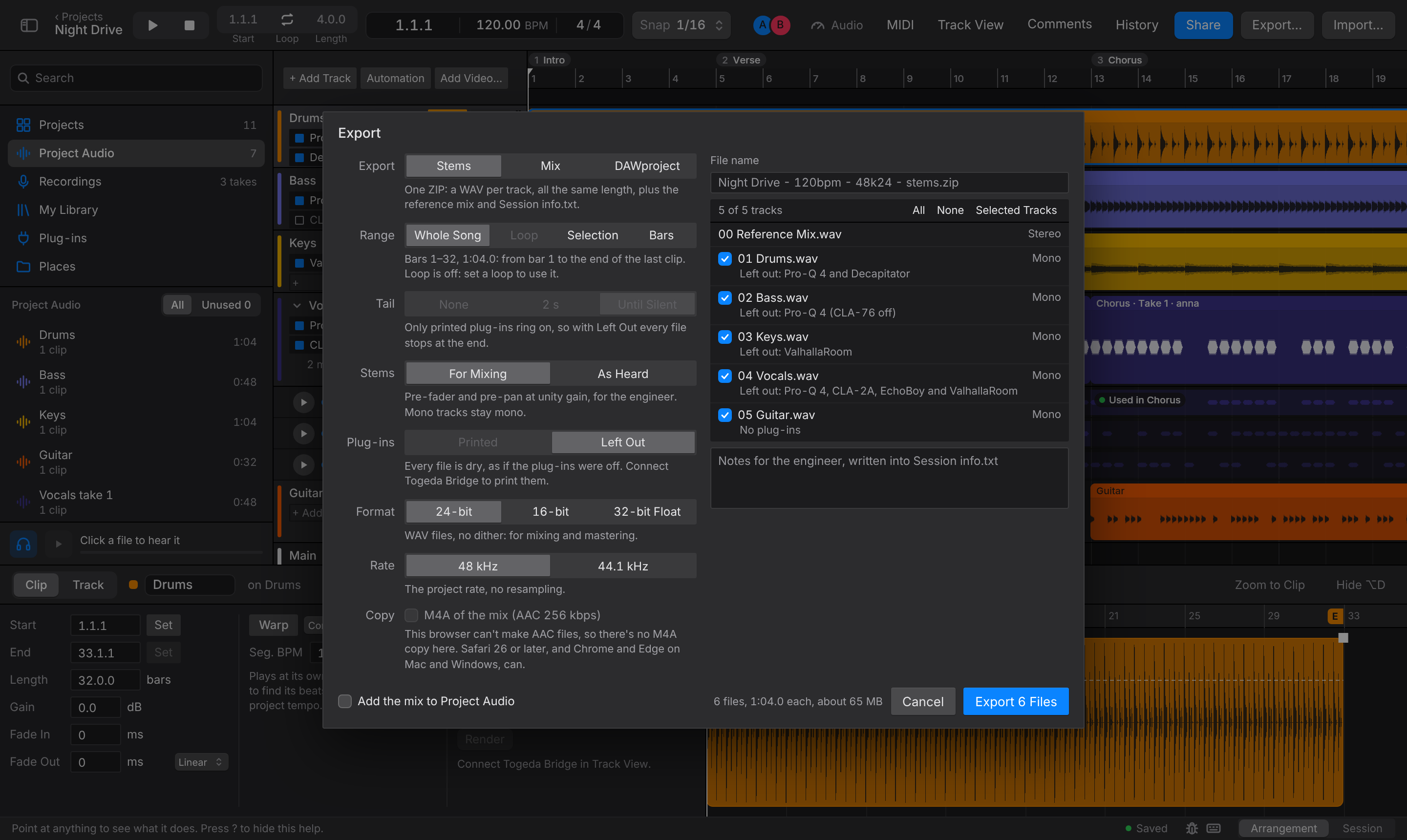
Export (top left) gives three choices:
- Stems: one ZIP with a WAV per track, all from the same start and the same length, mono tracks as mono files, plus the reference mix and
Session info.txt(with your Notes for the engineer). For Mixing stems are pre-fader and pre-pan at unity gain, for an engineer. As Heard stems are post-fader and add up to the mix. Untick tracks you don't want, or use All, None or Selected Tracks (the selected track and the tracks of the selected clips). - Mix: one stereo WAV, for mastering. Togeda adds no limiter and no normalizing (a limiter on Main is printed like any plug-in), and dither only for 16-bit.
- DAWproject: one
.dawprojectfile for Bitwig Studio, Cubase, Studio One and others: tracks, clips with their audio and warp mode, Session View scenes and clips, sends, plug-ins with their settings (Main's too), volume, pan and plug-in automation, and sections (as markers).
Range (stems and mix): Whole Song from bar 1 to the end of the last clip, the Loop, the Selection (a range, or from the first selected clip to the end of the last), or Bars you type in. The line under it says which bars and how long. The file names and Session info.txt say which bars.
Tail (when plug-ins are printed): reverbs and delays ring out past the end. Until Silent (the default) keeps going until every printed plug-in has fallen silent, up to 10 seconds; 2 s adds two seconds; None stops at the end. Every file gets the same tail, so they still line up. With plug-ins left out nothing rings on, so there is no tail.
Format: 24-bit WAV (no dither, for mixing and mastering), 16-bit WAV (with triangular dither, for CD and players that need it) or 32-bit Float WAV (keeps anything above 0 dB). If a file would clip in 24- or 16-bit, Togeda says which and offers to turn just those down or switch to 32-bit float.
Rate: 48 kHz, the project rate, or 44.1 kHz for CD and music services that ask for it. 44.1 kHz is resampled from 48 kHz with a linear-phase filter, flat to 20 kHz and with no delay, so the files still line up. Loudness and peaks are measured on the files as saved, and Session info.txt says the rate, the bit depth and whether there is dither.
Copy: tick M4A of the mix for a small AAC file (256 kbps) for listening on a phone. A Mix export saves it next to the WAV (your browser may ask to allow two downloads); stems put it in the ZIP as 00 Reference Mix.m4a. The M4A needs a browser that makes AAC files: Safari 26 or later, and Chrome and Edge on Mac and Windows, can; Firefox can't. Where the browser can't, the box is grayed out and says so.
DAWproject keeps its audio at 48 kHz, in 24-bit or 32-bit float.
File name: Togeda names the file from the project, the bars, the tempo and the format. Type your own name to use that instead.
Plug-ins (stems and mix, when the project has any on):
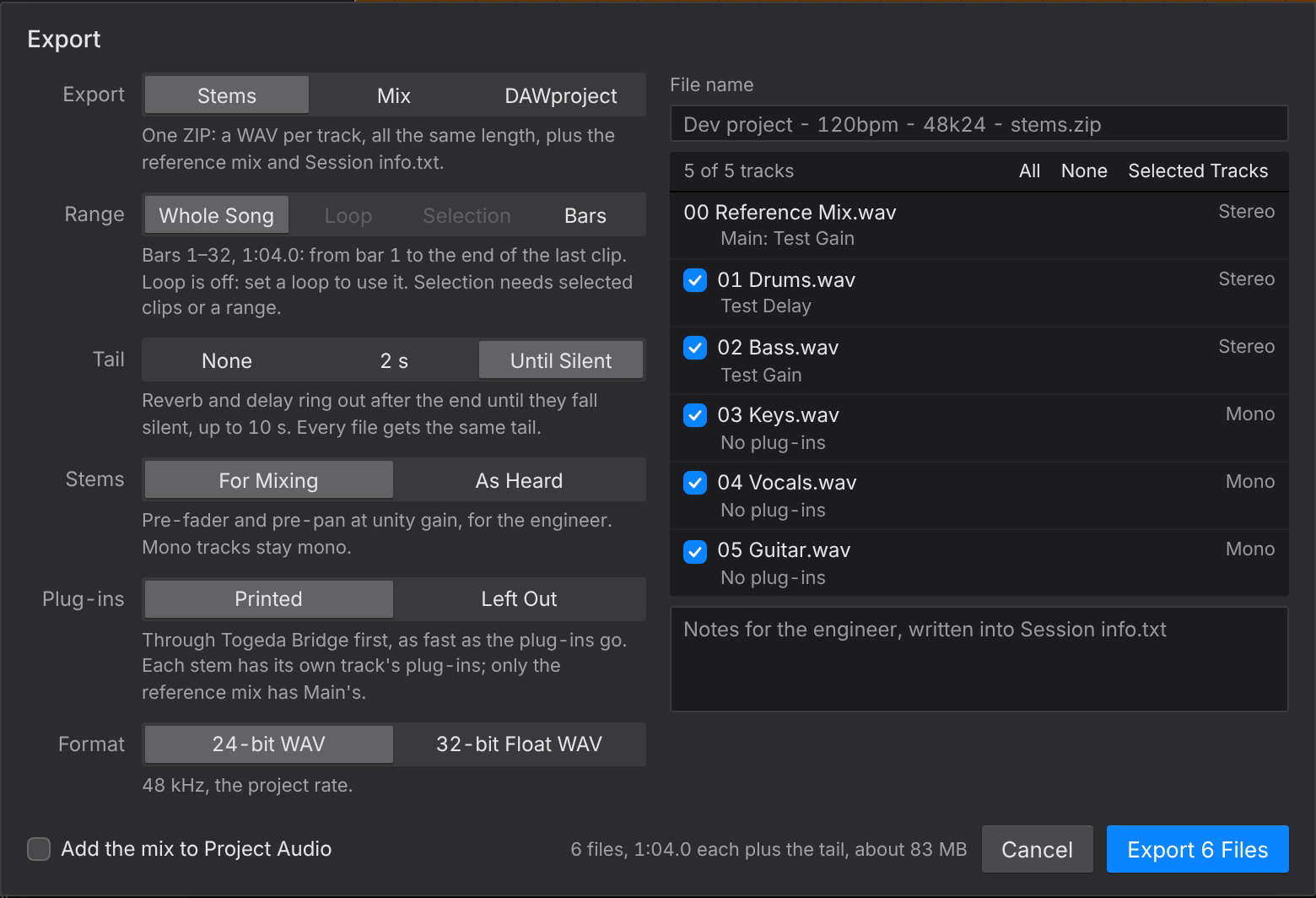
- Printed: Togeda Bridge runs every plug-in offline, faster than real time, and prints them into the files. Each stem has its own track's plug-ins, and a return's stem has the return's; only the reference mix and a Mix export have Main's. Plug-in latency is compensated, so every file still lines up from the same start. Printed needs Togeda Bridge connected with the same plug-ins installed; without it the choice is grayed out and the window says so.
- Left Out: the files are dry, as if every plug-in were off.
Session info.txt says which one you chose, the tail, and lists the plug-ins. To carry the plug-ins themselves and their settings to another DAW, use DAWproject.
Add the mix to Project Audio (bottom left): the exported mix (or the stems' reference mix) is also added to Project Audio, so everyone in the project can play it or drag it onto a track. It's off until you turn it on, and only editors can use it. When an export is done, Add Mix to Project Audio does the same for that export, for as long as the Export window stays open.
The window remembers your choices for each project in this browser, except the bars, the name and the tracks.
Anyone who can view a project can export it.