Working to picture
For music to picture, sound for TV and film, and post. Put the cut you're scoring or mixing on a picture track at the top of the song. The picture plays in sync with the sound, the ruler and the toolbar show timecode, and the picture's cuts show as yellow marks that edits snap to.
The whole team works to the same picture. Spot clips to timecode, move by a single frame, keep every cut the editor sends, and pull the editor's guide audio from the video. The video file stays on your computer; a smaller copy can be shared so collaborators see the picture without hunting for the file.
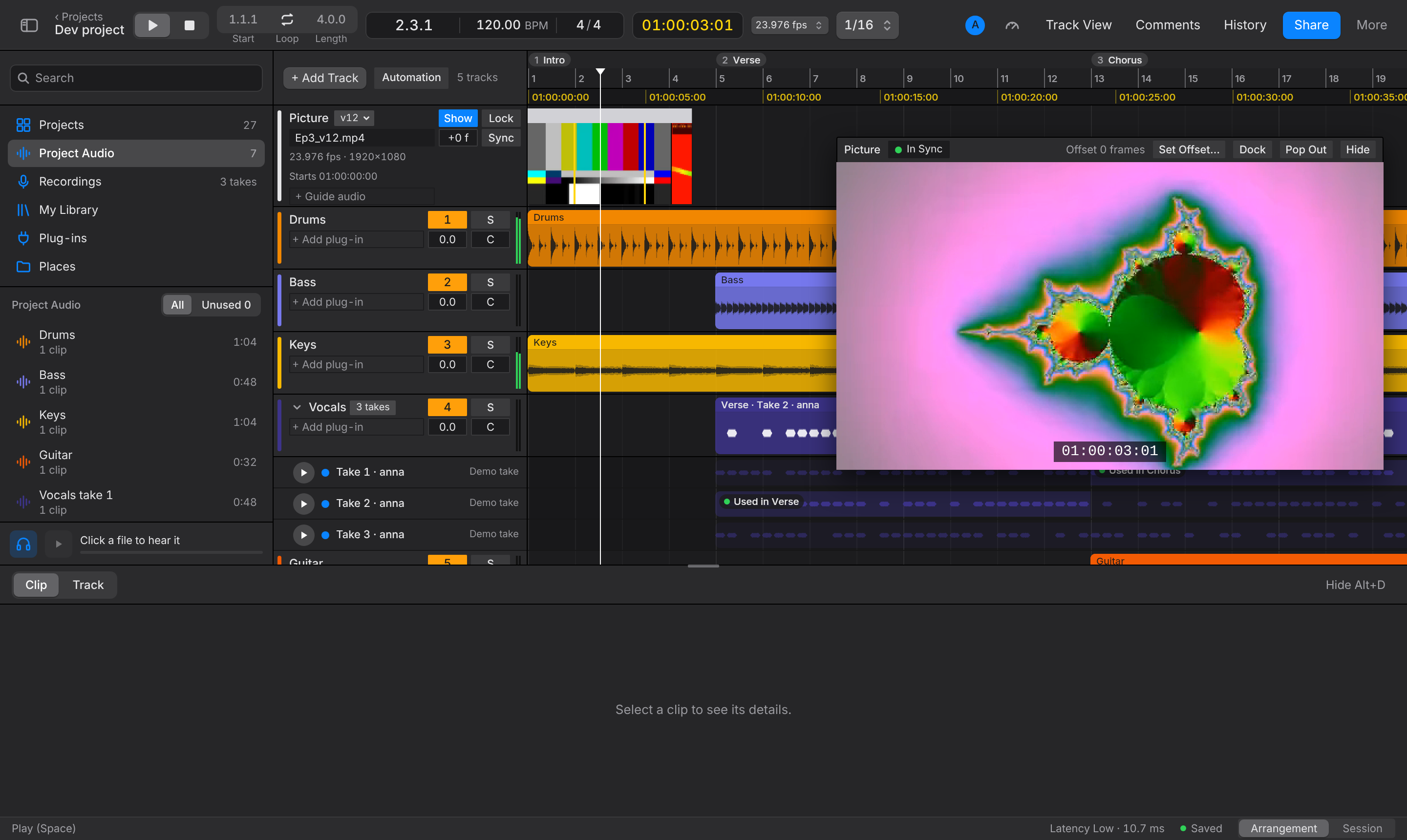
Add a video
Click Add Video… above the track headers and choose an .mp4, .mov or .m4v file. Togeda reads its frame rate, size, length and start timecode (from the file's timecode track; 00:00:00:00 when it has none).
The video file stays on your computer. Only its name, size, frame rate, start timecode and cut marks go into the project, so a 4 GB cut costs the project nothing. Togeda then asks whether to share a smaller copy with your collaborators (Sharing the picture). Nothing uploads unless you choose Share Copy.
The picture has to be in a format your browser plays. H.264 plays everywhere. ProRes plays only in Safari on a Mac; if your browser can't play the file, ask the editor for an H.264 review export.
Sharing the picture
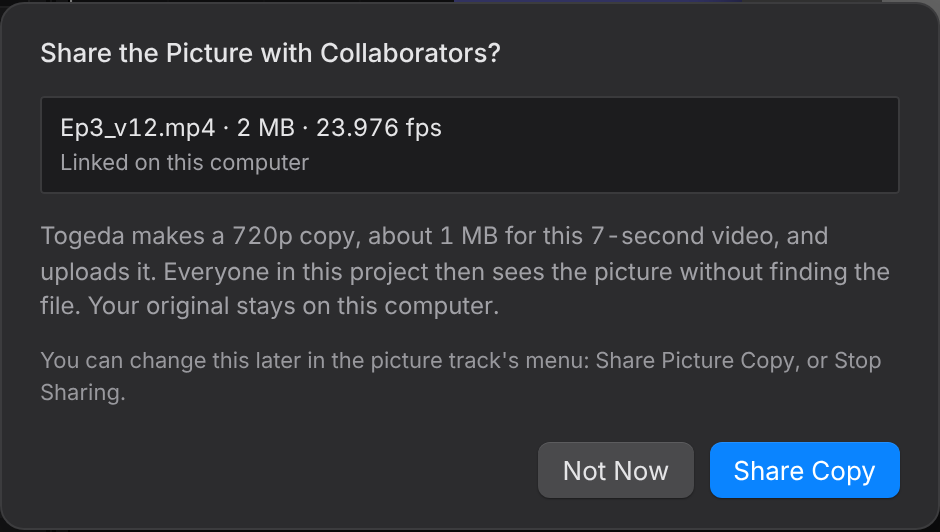
Share Copy makes a copy of the picture at up to 720 lines (about 180 MB for 20 minutes) on your computer and uploads it. Everyone in the project then sees the picture without finding the file. The copy keeps every frame, the frame rate and the start timecode, so spotting and sync stay frame-accurate. Your original stays on your computer.
- Not Now uploads nothing. Share later with Share Picture Copy… in the track's menu, and stop with Stop Sharing the Picture….
- A collaborator without the file sees Ask Ana to Share on the picture track. You then see who asked, with Share… and Not Now.
- A collaborator downloads the copy once. The browser keeps it, so the next time the project opens the picture is there at once. The track says who shared it, such as 720p copy from Ana.
- Link Your Original… swaps the copy for your own file, at full quality.
- Making the copy needs a browser that can read the file's picture. H.264 works in every current browser; ProRes can't be shared this way yet.
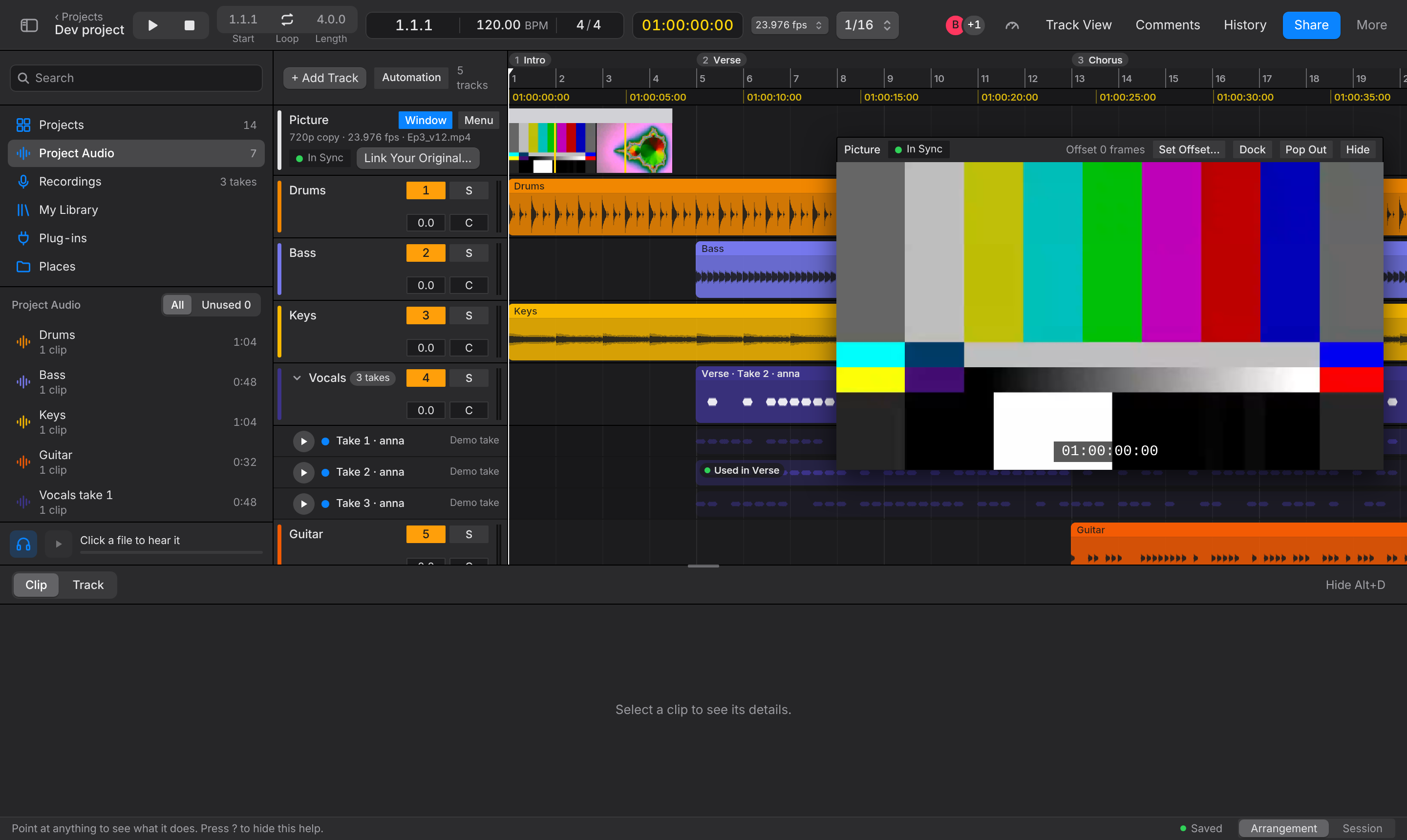
Linking your own file
Each person can also link the same file on their own computer:
- The picture track says Link Video… until you do. Choose your copy of the file. If its name or size differs from the project's video, Togeda asks before using it, since frames may not line up.
- In Chrome and Edge, Togeda remembers the file. After a restart it may ask you to Allow it again with one click.
- In Safari and Firefox, choose the file again each time you open the project.
Unlink on This Computer forgets your copy without changing the project. Remove Picture Track removes the picture for everyone.
The picture track
The picture track's header is laid out like a track's: the name with the cut playing, then a line each for the file, its frame rate and size, where it starts, and the guide audio. On the right, where a track has its number and S over volume and pan, are four boxes:
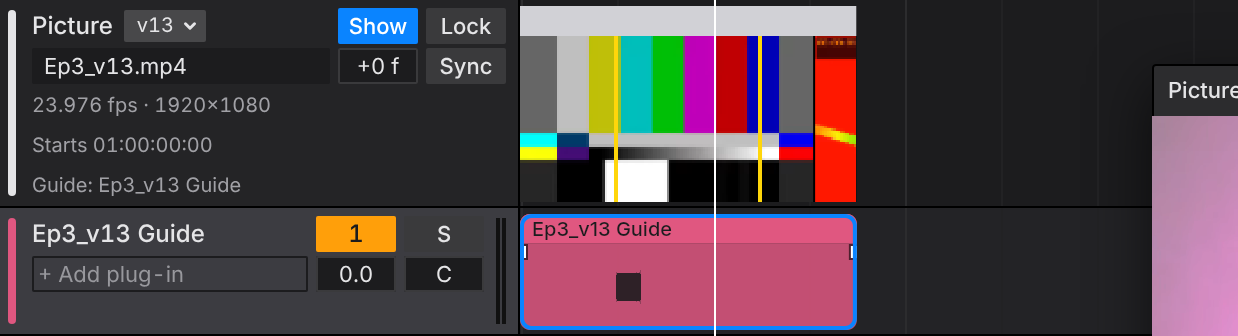
- Show shows or hides the picture window (Option+V).
- Lock holds the picture for everyone: Spot Video, the frame rate, new cuts and removing the track wait until someone presses Lock again. Lock the picture once it is spotted, so a stray click can't move it.
- +0 f is your offset in frames (Offset for you). Drag or scroll it, or click it and type.
- Sync stays gray while the picture plays in time. When your computer can't keep up it turns red and shows the frames, such as −2 f when the picture is two frames behind the sound (+ when it runs ahead).
Under the header:
- Filmstrip: frames from the video along the timeline. Click the row to move the playhead there.
- Cut marks: yellow lines where the picture cuts. Togeda finds them once, on the computer of the first editor who links the file, and shares them. With Snap on, clips you drag snap to a cut when they come within a few pixels of it.
- Sync in the picture window's title bar reads In Sync, Out of Sync by N Frames, or Before the Picture / After the Picture when the playhead is outside the video.
Cuts of the picture
Editors send new cuts: v12, then v13. Click the cut next to Picture (v12) and choose Add New Cut… to link the new file. It plays for everyone from then on. The previous cut stays in the list with its own cut marks and shared copy, so you can go back to it to compare. The list names each cut from its file name (v13 from Ep3_v13.mp4), or Cut 1, Cut 2 when the name has no version.
Your audio stays where it is when you switch cuts. Togeda remembers which file you linked for each cut, so in Chrome and Edge switching back needs no linking.
Guide audio
+ Guide audio under the picture's name puts the video's own sound (the editor's temp mix or production sound) on a new track at the top of the song, starting on the picture's first frame. It is an ordinary track: mute it, lower it or delete it when you no longer need it. Spot Video… moves it with the picture.
The sound comes from your linked file, so link your original first if you play a shared copy (copies have no sound). AAC, Opus and the uncompressed sound in an editor's .mov all work.
Timecode
- The toolbar shows the playhead's timecode in yellow, next to the frame rate. Pick another rate there if the file's rate is wrong; it changes for everyone. The rates are 23.976, 24, 25, 29.97, 29.97 Drop, 30, 50, 59.94, 59.94 Drop and 60 fps. Drop-frame rates count with semicolons.
- The bottom row of the ruler shows timecode under the bar numbers.
- Go to Timecode… (Option+G) moves the playhead to the timecode you type.
- Shift+, and Shift+. (the < and > keys, next to the , and . that step by a bar) move the playhead one frame. With clips selected they move the clips one frame instead.
- The Frame grid in the Snap pop-up snaps to frames.
Spot
Spot puts a clip on an exact frame, as in Pro Tools.
- Select a clip and press Option+P (or Spot Clip to Timecode…).
- Type the Start timecode, or press Use Playhead.
- Optionally type a Sync point: how far into the clip the moment is that should land on the start, such as a door's impact rather than the clip's first sample.
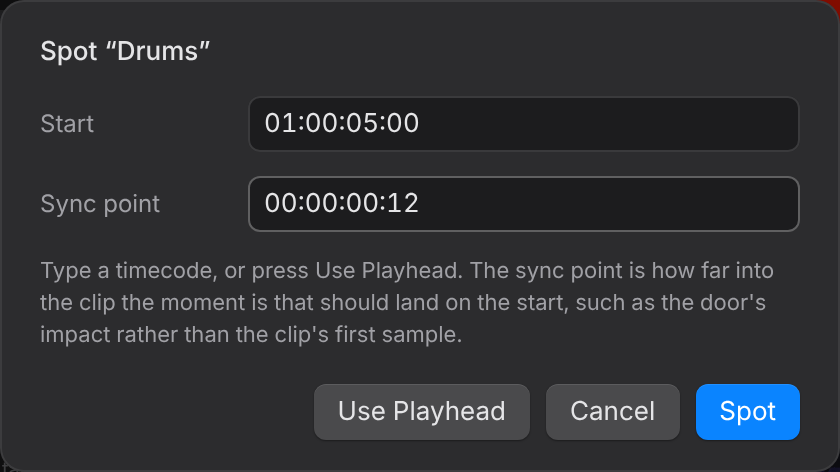
Spot Video… in the track's menu moves the picture instead: type where its first frame plays, as a bar (9.1.1) or a time (0:16).
The picture window
Click Show on the picture track (or press Option+V) to show or hide the picture. In its title bar:
- Dock puts the picture in the Detail View at the bottom, next to the clip or track. Float takes it out again.
- Pop Out opens the picture in its own browser window, to put it on a second screen. It shows the timecode too.
- Drag the title bar to move the window, and its bottom-right corner to resize it.
Offset for you
Some screens and TVs show the picture slightly late. The +0 f box on the picture track, Set Offset… in the picture window, or Offset for You… in the track's menu moves the picture by a number of frames on your computer only: positive shows it later, negative earlier. Your edits still land on the same frames for everyone.
The track's menu
Click the file name on the picture track, or right-click the row.
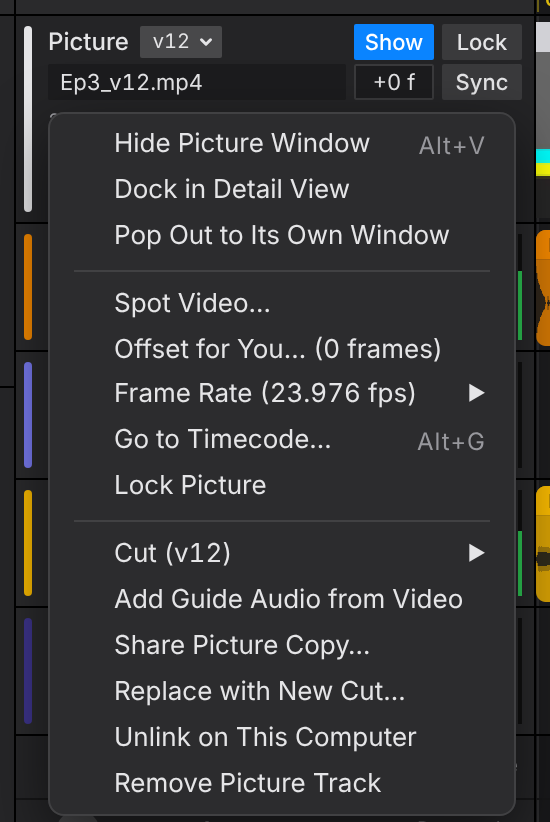
Replace with New Cut… does the same as Add New Cut… in the cut list (Cuts of the picture). Lock Picture and Add Guide Audio from Video are here too.
Not yet: review links and video export. They come next.